My Newsletter Went to Spam (Here is How I Fixed It for Free)
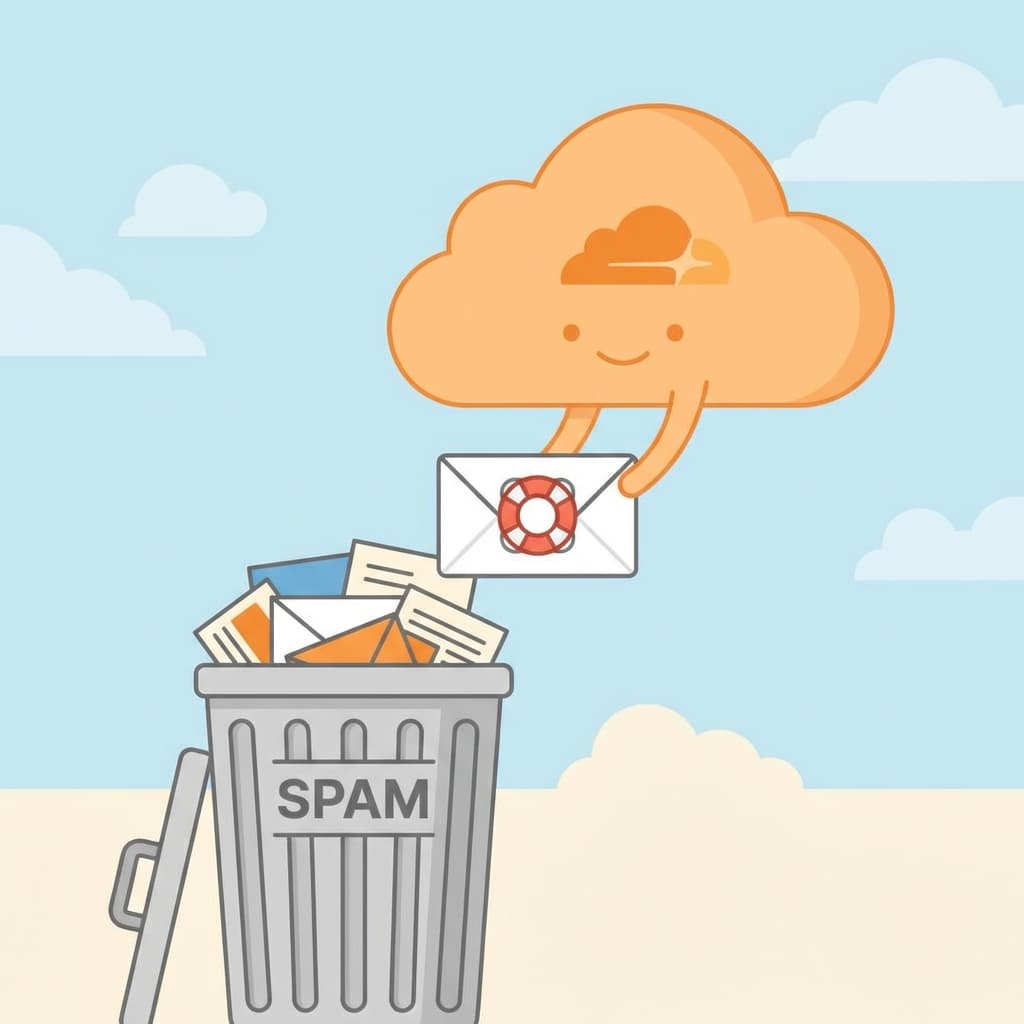
It started with a WhatsApp message from a friend: "Hey checking your blog, I subscribed but I never got the confirmation email."
I told him to check his Spam folder. "Yep, it's there," he replied.
That was a red flag. I rushed to check my Kit (ConvertKit) dashboard and saw the trend: my open rates had dropped significantly since I migrated. I was sending emails from my personal my-personal-email@gmail.com address, which I thought was fine.
It turns out, I was breaking the rules of the internet.
The Problem: DMARC and "Fake" Senders
Gmail and Yahoo recently updated their spam rules. Basically, they say: "If an email claims to be from @gmail.com but comes from a marketing server (like Kit/Mailchimp), it's fake."
To fix this, you need two things:
- A Custom Domain (like
danywalls.com). - Authentication (DKIM/SPF) to prove you own that domain.
The catch? I didn't want to pay $6/month for Google Workspace just to have hola@danywalls.com. I already pay for my domain and hosting; I wanted a free solution.
The Solution: Cloudflare Email Routing
Since I host my blog on Vercel but manage my DNS with Cloudflare, I discovered a hidden gem: Cloudflare Email Routing.
This allows you to create professional email addresses (aliases) that forward automatically to your personal Gmail.
- Inbound: People email
hola@danywalls.com-> Cloudflare forwards tomy-personal-email@gmail.com. - Outbound: Kit sends as
hola@danywalls.com-> We verify the DNS so Gmail trusts it.
What problem does this solve for us? We get a professional, deliverable email setup for $0/month.
Implementation Guide
Here is how I set it up in 10 minutes.
1. Enable Email Routing in Cloudflare
Go to your Cloudflare Dashboard -> Email -> Email Routing.
Click "Get Started" and define your custom address.
- Custom Address:
hola(createshola@danywalls.com) - Destination:
your-personal@gmail.com
Cloudflare will send you a verification email to your personal Gmail. Click the link, and you are verified.
Note: Cloudflare will ask to add some DNS records (MX and TXT) automatically. Let it do it.
2. Verify Your Domain in Kit
Now we need to tell Kit that it's allowed to send emails as this new address.
- Go to Kit Settings -> Email.
- Add your Verified Sending Domain (
danywalls.com). - Kit will give you 3 CNAME records.
Pro Tip: If you are already using Cloudflare, Kit has a button to configure this automatically. It opens a pop-up, you log in to Cloudflare, and acts as a "One-Click install". It saves you from copy-pasting manually.
3. The "Gotcha" with Cloudflare Proxy
This is where I got stuck. When adding these CNAME records to Cloudflare:
MAKE SURE TO TURN OFF THE ORANGE CLOUD (Proxy).
Set them to "DNS Only" (Grey Cloud). If you leave the proxy on, Kit cannot verify the records because Cloudflare hides the real values.
4. Update Your Sender Identity
Once the domain is verified (it takes about 5 minutes), go back to Kit and add hola@danywalls.com as your sender.
Now, when you send a newsletter:
- It comes from a professional domain.
- It creates a "pass" on DMARC checks.
- It lands in the Inbox, not Spam.
Summary
Deliverability is "invisible" tech debt. You don't see it until your open rates crash.
- We learned that sending marketing emails from
@gmail.comis a bad practice. - We built a forwarding system using Cloudflare Email Routing.
- We saved money by avoiding a paid rigorous email hosting plan.
So far we've fixed the technical setup. Now, go double-check your own open rates—you might be surprised.
Happy coding!
Real Software. Real Lessons.
I share the lessons I learned the hard way, so you can either avoid them or be ready when they happen.
Join 13,800+ developers and readers.
No spam ever. Unsubscribe at any time.